
Inventory management design: how to build software teams actually use
 Emily Carter
·
· 17 min read
Emily Carter
·
· 17 min read

Inventory tools fail when screens do not match real work. Teams then rely on sheets, side notes, and memory. Strong inventory management design closes that gap between system logic and daily calls. A good screen helps people act with trust. It shows stock, flags, spots, and next steps clearly.
Poor inventory management design hides that same data behind extra clicks and unclear labels. Over time, that friction drains margin through slow picks, missed reorders, and avoidable write-offs.
How design shapes daily calls
In practice, inventory management design affects buying, receipt, picking, moves, and cycle counts. Each task depends on fast answers and clean data. When users trust the screen, they sync logs on time.
Furthermore, the best inventory management UI fits the way teams already think. Warehouse staff need scan-ready tasks and clear spot cues. Buyers need reorder risks, vendor lead times, and demand flags. So the interface must serve both groups well.
A picker should know which bin to visit next. The screen should make that clear with no extra steps. See also warehouse layout planning for how layout and design work together.
Usability builds trust in inventory management design
In fact, trust grows when the system shows real stock. Clean status labels, clear alerts, and plain flows cut guesswork. That trust turns software from a log tool into a working asset.
A real user interface workflow makes clean data easier. It cuts double entry, flags bad counts, and keeps key steps close. Small design choices can save minutes across thousands of tasks each day.
So, effective inventory management design starts with calls users must make under time pressure. Each screen should help them answer what changed, what matters, and what comes next. Teams that design inventory management system screens around real work see faster adoption.
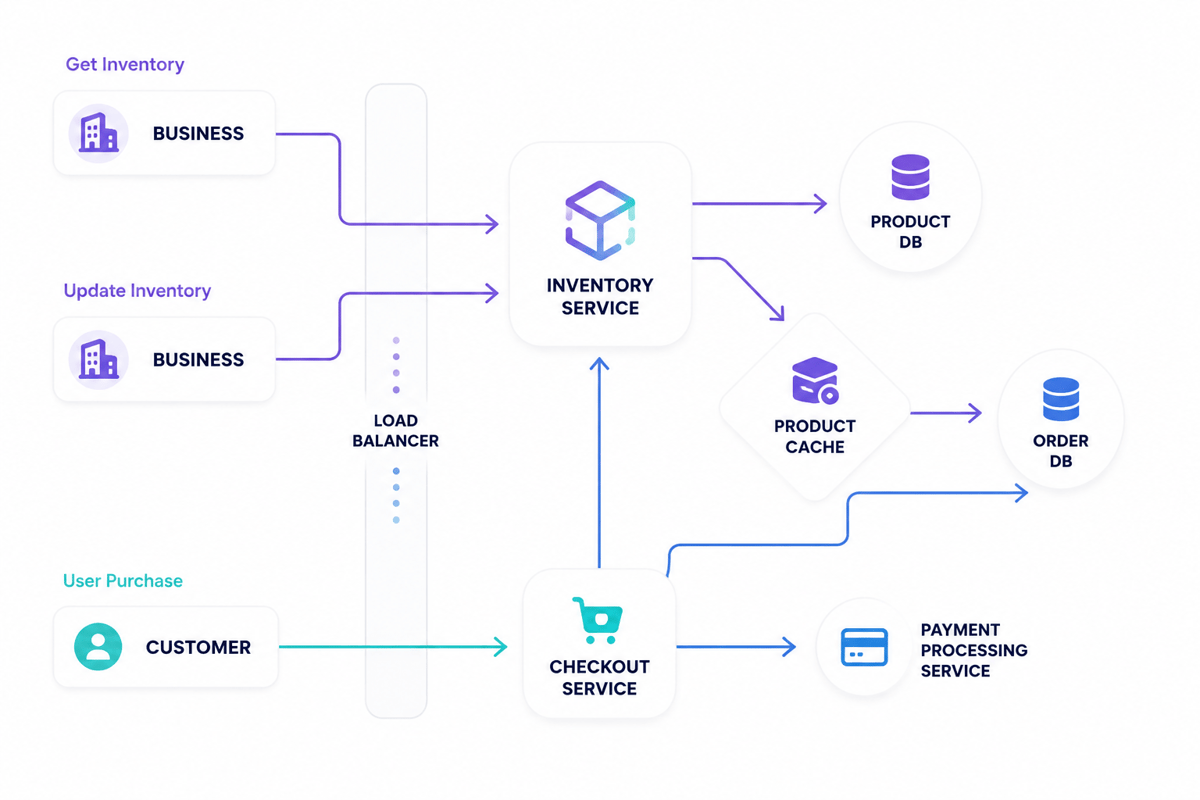
Core goals of an effective inventory management UI
An effective inventory management UI turns stock activity into clear calls. It shows what is open, where it sits, and what needs action now. Clear screens keep teams out of sheets and email threads.
Furthermore, the best inventory management design lowers risk during daily work. Receiving, picking, moves, cycle counts, and shifts all affect cost. A clear screen makes the next right step easy to see.
Speed and accuracy in inventory management design
Speed matters, but clean data saves margin. Good inventory management design cuts clicks and removes double entry. It also flags gaps before users save a log. A picker should see the item, bin, count, and scan status together.
Error stopion works best when it fits the task. Barcode checks stop many wrong moves at the source. Need fields to help users finish logs with less backtracking. Strong inventory management software design guides users without slowing down the work.
- Real-time counts split open, reserved, and damaged stock.
- Clear status labels show pending, active, and done work.
- Inline warnings explain stock gaps before users save changes.
Clarity for daily calls in the inventory management UI
In practice, clarity means each role sees the right detail. Warehouse staff need task order, spots, and scan feedback. Managers need gaps, old stock, and cost flags. Each view should match the call in front of the user.
A strong user interface for an inventory management system builds trust. Users believe the counts when syncs happen fast. They lose trust when screens hide holds or moves. Good inventory management design makes those details visible at the right time.
The screen also splits set work from flags. That split helps lead clear blocks before shipments slip. Scalable inventory management design keeps the same logic across sites, tools, and roles. The same goals become key in multi-location inventory management software.
Connect Shopify, draw your floor, pick an order - free plan, 7-day full trial, no credit card, no sales call.
Designing the inventory management system interface around workflows
Strong inventory management design starts with the work people do each day. Receiving, picking, cycle counts, moves, and shifts each need clear paths. A screen that matches the task cuts clicks and stops guesswork.
Good inventory management UI design shows the next call clearly. Users should see item status, spot, count, and flags together. Separate views work better when they serve varied roles.
Map screens to daily tasks
The user interface for the inventory management system workflows should reflect real site and store movement. Receiving screens need to buy order details, expected units, and gap alerts. Picking screens need bin spots, swaps, and priority flags.
Task-based screens help users finish work with no switching tools. A buyer may need stock risk and vendor lead time. A picker needs a count, spot, and scan check. So role design is not optional.
- Receiving workflows benefit from clear gap checks.
- Move workflows need a source and a target view.
- Shift workflows should capture reason codes and sign-offs.
- Cycle count workflows work best with guided item lists.
Careful inventory management design cuts errors at high-pressure points. The screen should stop double scans and bad spots. Clear warnings help users fix issues before stock logs drift.
Build a flow around exceptions in inventory management design
Most stock work moves well until a flag shows. Short ships, damaged goods, and missing bins need fast care. Strong inventory management software design brings those issues into the set workflow.
For instance, exception handling works best when users see the cause and next step. A damaged item screen can show a photo, hold status, and vendor notes. This keeps the log clean with no extra follow-up.
Furthermore, inventory management design also needs role-based access. Leads can approve write-offs, while staff log counts and scans.
Indeed, the best inventory management design keeps navigation shallow. Users should reach common tasks in one or two clicks. Search should accept SKU, barcode, item name, and spot. Teams that design flows around real tasks gain cleaner data that can help multi-channel inventory management.
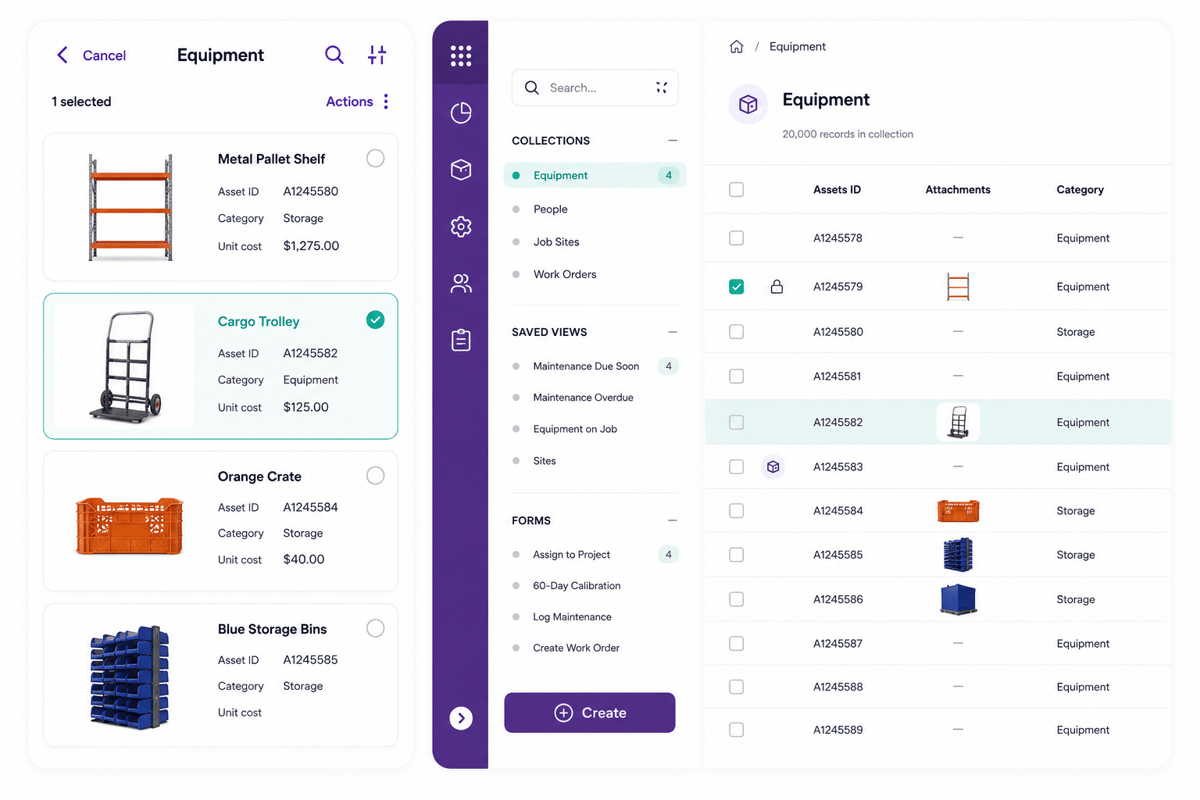
Inventory management software design features users expect
In practice, users judge stock tools by daily work speed. Strong inventory management design keeps common steps close to the data that drives them. Stock counts, moves, shifts, and buy requests should feel linked.
Teams also expect the system to cut guesswork. A clear inventory management UI shows item status, spot, demand, and risk together. In real inventory management design, alerts explain what changed and who made the change.
Core features for daily work
Solid search sits at the center of inventory management software design. Users need to find items by SKU, barcode, vendor code, lot count, or plain name. Filters should cut results without forcing extra screens.
Also, role-based views matter. A picker needs bin spot and count. A buyer needs vendor lead time and reorder points. Strong inventory management design gives each role the right details.
- Real-time stock across sites and sales channels
- Fast stock shifts with reason codes and audit log
- Low-stock, overstock, expiry, and backorder alerts
- Bulk edits for price, spot, status, and vendor data
- Plain import and export tools for clean item logs
Furthermore, the audit log deserves special care because stock errors cost money. A user interface for an inventory management system should show before-and-after values. Managers then have proof without rebuilding events from memory.
Accuracy, speed, and trust in inventory management software design
Barcode scanning, cycle counts, and guided receiving keep data live. These features work best when screens show the next good field. Good inventory management design cuts visual noise during high-volume tasks.
Furthermore, exception handling also shapes user trust. The system should flag bad counts, double SKUs, and open stock early. A strong inventory management UI explains each issue in plain text.
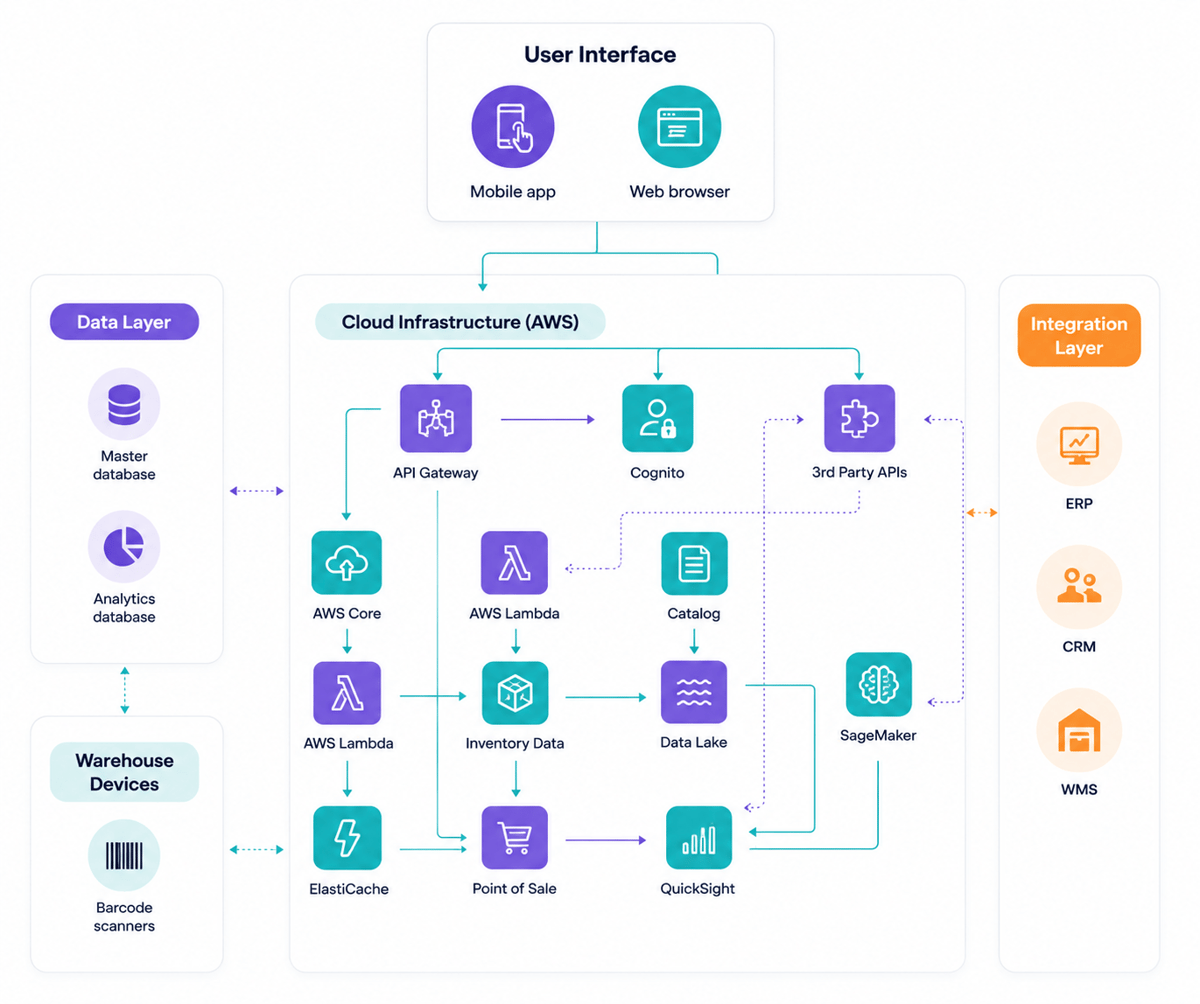
Also, link points need the same care as screen design. Orders, invoices, shipping tools, and accounting systems depend on shared stock data. Teams that design inventory management system workflows gain value by mapping where data changes hands.
Real inventory management design tends to start with the tasks that cause the most errors. It helps them with a barcode warehouse management system and links to the right inventory management software.
How to design inventory management system dashboards and reports
Dashboards turn stock data into daily calls. In inventory management design, they work best when they show risk, not noise. Buyers need reorder weight. Warehouse teams need picks, holds, and spot gaps.
A good UI splits live work from check data. The dashboard answers what needs action now. Reports explain trends across days, weeks, and seasons.
Dashboard views that support daily work
For instance, effective dashboards match the roles that use them. A planner may need to account for vendor delays and demand shifts. A warehouse lead may need to address backlogs and cycle count gaps.
So, good inventory management design gives each role a focused view. Too many metrics slow calls and hide urgent work. Indeed, the best layouts show flags first, then context.
- Low-stock items deserve priority when demand stays active.
- Overstock warnings help teams spot tied-up cash.
- Stock aging shows products that may need action soon.
- Open moves show stock trapped between sites.
However, color can help, but it should never carry meaning alone. Clear labels, thresholds, and status text cut mistakes. This matters when teams scan dashboards under time pressure.
Reports that explain trends in inventory management design
Reports need a more varied structure than dashboards. Dashboards guide live work, while reports help with planning. Strong inventory management software design keeps those goals separate.
A good report starts with the question behind the data. Stockout reports may show missed sales and affected SKUs. Shrink reports may compare counts, shifts, and sites.
Also, the inventory management design needs clean filters. Users should compare products, sites, vendors, and time periods with no confusion. Saved views help repeat checks stay steady.
Teams that design inventory management system dashboards around real calls cut rework. Better reporting gives managers the reason behind each gap. That same clarity matters even more in a mobile inventory management system.
Inventory management design use cases for retail, warehouses, and ecommerce
In fact, inventory management design changes by operating model. Retail teams need speed at the counter and shelf clean data. Warehouse teams need task control and spot detail. Ecommerce teams need clean stock promises across each sales channel.
Furthermore, a strong UI shows those differences without creating separate systems. The same product log can help store moves, bin shifts, and online orders.
Retail and store operations
In fact, retail users tend to work under time pressure. Store managers and staff need fast answers during buyer talks. Inventory management design for stores should show open stock, held stock, and incoming moves in one view.
So, good retail screens cut manual checks and missed sales. A store worker can check the size of stock without calling the stockroom. Managers can spot slow goods before markdowns cut margins.
Also, store teams need plain exception handling. Damaged goods, returns, and cycle counts should take a few steps. Inventory management software design works best when routine store tasks fit touch screens and hand tools.
Warehouse and ecommerce workflows in inventory management design
Furthermore, warehouse teams need deeper control over spots, batches, and move logs. Inventory management design should help with receipt, putaway, picking, packing, and shipping with no screen clutter.
For warehouses, clean data tends to depend on scan timing. Furthermore, the system should sync stock when items move, not hours later. That design choice cuts search time and stops double picks.
Also, ecommerce adds more risk. Online shoppers expect stock promises to match real stock. Inventory management design for ecommerce should link orders, returns, safety stock, and channel rules. This stops overselling during peaks.
The strongest use cases share one trait. They turn livestock data into clear action for each team. All three groups gain from cloud-based inventory software and strong inventory tracking.
Common mistakes in inventory management UI design and how to avoid them
Poor screens rarely fail because teams lack features. They fail because daily tasks feel slower than expected. In inventory management design, each extra click carries a cost. Busy warehouse teams notice the cost during each stock count.
Moreover, most mistakes start with assumptions about user roles. Buyers, pickers, managers, and finance teams need varied views. A strong user interface shows those differences.
Cluttered screens and weak priorities
Cluttered dashboards make a common fail point. Teams add each field, chart, and alert to one screen. That hides the next step from the user. Good inventory management design gives weight to urgent work.
Gaps, low margins, and pending moves need clear visual weight. Slow details can sit one layer deeper. The best inventory management UI splits call data from reference data. This keeps routine tasks fast and cuts missed alerts.
- Primary steps work best near the data they affect.
- Color should mark status, risk, or flags only.
- Search fields need clear filters for SKU, spot, and status.
- Error messages should state the issue and the next safe step.
Data gaps and poor workflow fit
Another mistake shows when screens ignore real conditions. A picker may scan items with one hand. Effective design accounts for those settings early.
Furthermore, missing checks also damage trust. If users can enter negative stock with no context, reports lose value. Sound inventory management design saves data at the point of entry.
Teams also struggle when software mirrors old paper forms too closely. Digital flows can cut double sign-offs and repeated typing. Better inventory management design helps with the task in fewer steps. Teams that design inventory management system screens around real work cut rework and gain better inventory optimization.
Inventory management design best practices for mobile, scanning, and automation
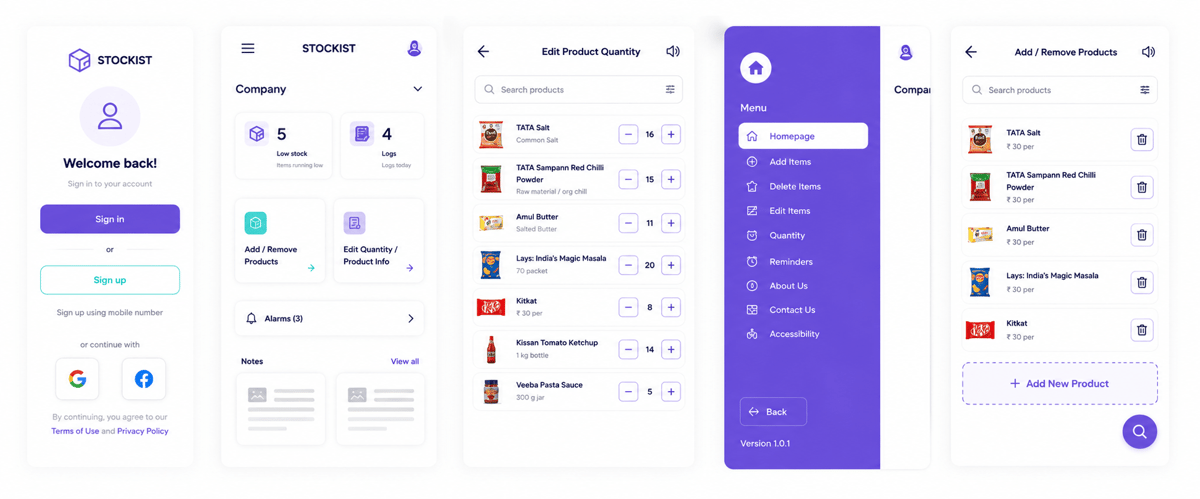
Mobile work changes the demands of inventory management design. Users scan, count, receive, and move stock while standing, walking, or driving. Screens need clear steps, large tap targets, and fast feedback after each scan.
A strong inventory management UI cuts typing wherever possible. Barcode scans, saved spots, and preset counts help teams finish tasks with fewer errors. The design should also help with gloves, glare, weak Wi-Fi, and noisy floors.
Mobile workflows and barcode scanning in inventory management design
In practice, mobile screens work best when each task has one main goal. A receiving screen might check item, count, lot, and spot. Extra fields can show only when the item needs them.
Barcode scanning should check success within a second. The screen can show a green state, play a short tone, and move to the next field. Error states need plain text, such as “Item not found” or “Wrong bin.”
Inventory management design also needs a clear recovery path. Sometimes, workers may scan a damaged label or lose network access mid-task. Local draft saving, retry queues, and manual entry stop stalled work.
Good inventory management software design treats scanning as a workflow, not a feature. The system should know what the user expects next. That context cuts clicks and speeds up routine stock movement. See also how this links to business automation tools and a full barcode warehouse management system.
Automation that supports control
Indeed, automation works best when it handles repeat calls with clear rules. Reorder alerts, low-stock warnings, cycle count prompts, and flag alerts all fit this model. Users still need control over sign-offs and edge cases.
Also, the inventory management design should show why an automated step is shown. A reorder hint becomes more good when it shows live stock, average sales, lead time, and open buy orders. Clear reasoning helps managers trust the system.
Furthermore, automation also depends on clean event design. Furthermore, each scan, shift, move, and receipt should make a time-stamped log. These logs help teams trace stock issues without calling three teams.
For teams that design inventory management system workflows, alerts need careful limits. Too many warnings train users to ignore them. Therefore, priority rules, role-based alerts, and grouped flags keep focus on real problems. The best inventory management design connects scanning, sign-offs, and stock flags across ops, including order management software.
How to evaluate and improve your inventory management software design
Furthermore, strong design needs regular checks after launch. Real use tends to expose gaps that early planning misses. Teams may skip fields, export data, or make workarounds. Each behavior points to friction in the product.
So, evaluation works best when it links design choices to results. A clear inventory management design check shows where screens slow work, hide risk, or cause errors. The goal is not a better-looking screen. The goal is faster, cleaner stock calls.
Measure real workflow performance
Good check starts with live workflow data. The system should show how long tasks take, where users stop, and which errors repeat. These trends reveal issues that user opinions may miss.
- Time needed to receive, count, pick, move, and adjust stock
- Error rates for SKU entry, barcode scans, and stock counts
- Count of clicks needed for common warehouse tasks
- How do teams tend to export, add notes, or use spreadsheet workarounds
- Help requests tied to the inventory management UI
In fact, a weak inventory management design tends to add steps at high-volume points. For example, a picker may open three screens to check one item. A better flow places scan status, count, and spot together. That change can cut hundreds of clicks each day.
Short user sessions also reveal hesitation, repeated backtracking, and unclear labels. These flags help teams help the user interface workflows before small issues become daily delays.
Turn findings into design changes
Therefore, change works best through small, tested steps. For instance, a team can adjust one workflow, measure the gain, and compare it with the prior version. This approach cuts risk and keeps users involved.
Furthermore, high-value changes tend to focus on fewer fields and clearer defaults. For example, spot, unit count, and lot data should show when the task needs them. Extra fields can move behind advanced options. This keeps the main path clean.
Also, dashboards need regular checks. A strong inventory management design shows the few metrics that drive action. Slow-moving stock, reorder risk, shrinkage, and fill delays deserve priority. Charts make noise when users need calls.
Users trust changes when the product cuts known pain. The best design keeps improving as ops change. A solid ecommerce website design shares the same core idea: screens should serve real user needs.
Conclusion
Overall, strong inventory management design starts with daily work, not screens. The best systems reflect how teams receive, count, move, and sell stock. Clear workflows cut errors before they reach buyers or finance.
A good UI gives teams the right detail at the right time. It flags exceptions, helps fast scanning, and keeps core steps easy to find. Good design also helps managers trust the data behind each call.
Design that fits real inventory management work
Indeed, effective design links people, process, and data. Warehouse teams need speed and clean data. Finance teams need clean logs. Sales teams need solid stock counts before they make promises.
The best design choices show up in daily behavior. Teams scan items more often, fix issues earlier, and trust stock counts. Therefore, that trust helps with better buying, fewer gaps, and faster order handling.
Next steps with inventory management design
A check starts with the tasks that cause delays. Look at receiving, picking, cycle counts, returns, and sign-offs. Each weak point shows where inventory management design can cut manual work. Also, strong teams test designs with real users before rollout. Also, their feedback shows missing fields, confusing labels, and slow screen flows. A
Finally, inventory management design works best as a steady practice. Reports, dashboards, and mobile tools should grow with volume, channels, and team size. Start with one high-impact workflow, measure the base, and redesign it around real user behavior. Research from Nielsen Norman Group shows usability testing drives the strongest design gains. For a broader view of platform choices, check these inventory management solutions.
 Google AI
  OpenAI ChatGPT
 Frequently Asked Questions
How do you design an inventory management system?
To design an inventory management system, start by mapping key workflows such as stock intake, storage, transfers, sales, returns, and replenishment. Define user roles, required reports, barcode or RFID needs, and integration points with accounting or sales tools. A strong inventory management design should make stock data accurate, easy to update, and simple to review.
What makes a good inventory management UI?
A good inventory management UI is clear, fast, and task-focused. Users should quickly see stock levels, product details, reorder alerts, supplier information, and movement history. The user interface for the inventory management system should reduce manual effort with filters, search, bulk actions, and clear status indicators, helping teams complete daily inventory tasks with fewer errors.
How do you design a database for an inventory management system?
To design a database for an inventory management system, define core tables for products, categories, stock locations, suppliers, purchases, sales, adjustments, and users. Track quantities through transaction records instead of overwriting data. Good inventory management software design also includes audit logs, unique product identifiers, and relationships that support accurate reporting across warehouses or departments.
How do you add items to inventory in a design manager?
In most design manager or inventory tools, you add items by creating a product record with a name, SKU, category, cost, price, supplier, and available quantity. You may also upload images, assign storage locations, and set reorder points. The exact steps depend on the software, but the goal is to keep each item easy to find and update.
What should be included in inventory management software design?
Inventory management design should include product tracking, stock adjustments, purchase orders, sales updates, low-stock alerts, reporting, and user permissions. It should also support barcode scanning, multiple locations, and integrations where needed. The design should prioritize accuracy, simple navigation, and real-time visibility so managers can make better purchasing and stocking decisions.
How can a business design an inventory management system for growth?
To design inventory management system features for growth, plan for more products, users, warehouses, and sales channels from the beginning. Use scalable data structures, role-based access, configurable workflows, and flexible reporting. A growth-ready system should support automation, integrations, and performance at higher transaction volumes without making the inventory management UI difficult to use.
I am an eCommerce expert with a strong focus on marketplaces like Amazon, eBay, and Etsy. Over the past decade, I have helped both startups and $1M+ revenue brands scale their sales through listing optimization, marketplace SEO, and AI-driven strategies. I also share articles and insights about eCommerce growth, marketplace operations, and multichannel selling.
You may also like

How to choose an ecommerce marketplace service provider for scalable growth
Learn how an ecommerce marketplace service provider helps businesses launch, manage, and scale a profitable ecommerce marketplace. Platform choices, vendor operations, software tools, management services, costs, and practical selection tips.

Ecommerce software solutions: features, costs and how to choose
Learn how to evaluate ecommerce software solutions for online stores, marketplaces, and retail teams. Essential features, vendor comparisons, implementation tips, and practical ways to choose software that supports growth, operations, and customer experience.

Multi-carrier shipping software: features and how to compare options
How multi carrier shipping software compares rates, prints labels, tracks orders and handles returns, and which features to check before you choose one for your store.